야호. 이제야 프로그램 좀 짜는 것 같네.
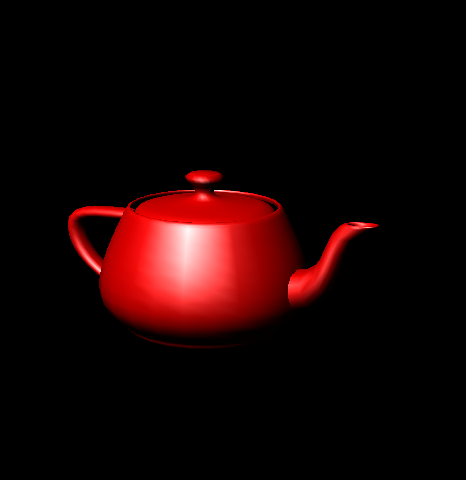
//—————————————————————————–
// File: Matrices.cpp
//
// Desc: Now that we know how to create a device and render some 2D vertices,
// this tutorial goes the next step and renders 3D geometry. To deal with
// 3D geometry we need to introduce the use of 4x4 matrices to transform
// the geometry with translations, rotations, scaling, and setting up our
// camera.
//
// Geometry is defined in model space. We can move it (translation),
// rotate it (rotation), or stretch it (scaling) using a world transform.
// The geometry is then said to be in world space. Next, we need to
// position the camera, or eye point, somewhere to look at the geometry.
// Another transform, via the view matrix, is used, to position and
// rotate our view. With the geometry then in view space, our last
// transform is the projection transform, which “projects” the 3D scene
// into our 2D viewport.
//
// Note that in this tutorial, we are introducing the use of D3DX, which
// is a set of helper utilities for D3D. In this case, we are using some
// of D3DX’s useful matrix initialization functions. To use D3DX, simply
// include <d3dx9.h> and link with d3dx9.lib.
//
// Copyright (c) Microsoft Corporation. All rights reserved.
//—————————————————————————–
#include <Windows.h>
#include <mmsystem.h>
#include <d3dx9.h>
#pragma warning( disable : 4996 ) // disable deprecated warning
#include <strsafe.h>
#pragma warning( default : 4996 )
//—————————————————————————–
// Global variables
//—————————————————————————–
LPDIRECT3D9 g_pD3D = NULL; // Used to create the D3DDevice
LPDIRECT3DDEVICE9 g_pd3dDevice = NULL; // Our rendering device
//LPDIRECT3DVERTEXBUFFER9 g_pVB = NULL; // Buffer to hold vertices
//LPDIRECT3DINDEXBUFFER9 g_pIB = NULL; // Buffer to hold vertices
ID3DXMesh *mesh = 0;
struct CUSTOMVERTEX
{
D3DXVECTOR3 position; // The 3D position for the vertex
D3DXVECTOR3 normal; // The surface normal for the vertex
};
#define D3DFVF_CUSTOMVERTEX (D3DFVF_XYZ | D3DFVF_NORMAL)
//—————————————————————————–
// Name: InitD3D()
// Desc: Initializes Direct3D
//—————————————————————————–
HRESULT InitD3D( HWND hWnd )
{
// Create the D3D object.
if( NULL == ( g_pD3D = Direct3DCreate9( D3D_SDK_VERSION ) ) )
return E_FAIL;
// Set up the structure used to create the D3DDevice
D3DPRESENT_PARAMETERS d3dpp;
ZeroMemory( &d3dpp, sizeof(d3dpp) );
d3dpp.Windowed = TRUE;
d3dpp.SwapEffect = D3DSWAPEFFECT_DISCARD;
d3dpp.BackBufferFormat = D3DFMT_UNKNOWN;
d3dpp.EnableAutoDepthStencil = TRUE;
d3dpp.AutoDepthStencilFormat = D3DFMT_D16;
// Create the D3DDevice
if( FAILED( g_pD3D->CreateDevice( D3DADAPTER_DEFAULT, D3DDEVTYPE_HAL, hWnd,
D3DCREATE_SOFTWARE_VERTEXPROCESSING,
&d3dpp, &g_pd3dDevice ) ) )
{
return E_FAIL;
}
g_pd3dDevice->SetRenderState( D3DRS_ZENABLE, TRUE );
// Turn off culling, so we see the front and back of the triangle
g_pd3dDevice->SetRenderState( D3DRS_CULLMODE, D3DCULL_CCW );
g_pd3dDevice->SetRenderState( D3DRS_SHADEMODE, D3DSHADE_GOURAUD );
// Turn off D3D lighting, since we are providing our own vertex colors
g_pd3dDevice->SetRenderState( D3DRS_LIGHTING, FALSE );
//D3DXCreateBox (g_pd3dDevice, 2,2,3,&mesh,0);
D3DXCreateTeapot(g_pd3dDevice,&mesh,0);
//D3DXCreateSphere (g_pd3dDevice,2,10,10,&mesh,0);
//D3DXCreateCylinder (g_pd3dDevice,3,3,5,10,5,&mesh,0);
//D3DXCreatePolygon (g_pd3dDevice,3.3f,5,&mesh,0);
//D3DXCreateTorus (g_pd3dDevice,0.5f,2.0f,10,30,&mesh,0);
return S_OK;
}
//—————————————————————————–
// Name: InitGeometry()
// Desc: Creates the scene geometry
//—————————————————————————–
//—————————————————————————–
// Name: Cleanup()
// Desc: Releases all previously initialized objects
//—————————————————————————–
VOID Cleanup()
{
// if( g_pVB != NULL )
// g_pVB->Release();
if( g_pd3dDevice != NULL )
g_pd3dDevice->Release();
if( g_pD3D != NULL )
g_pD3D->Release();
}
//—————————————————————————–
// Name: SetupMatrices()
// Desc: Sets up the world, view, and projection transform matrices.
//—————————————————————————–
VOID SetupMatrices()
{
// For our world matrix, we will just rotate the object about the y-axis.
D3DXMATRIXA16 matWorld;
D3DXMATRIXA16 matTransform;
D3DXMATRIXA16 matRotate;
D3DXMatrixIdentity(&matWorld);
g_pd3dDevice->SetTransform( D3DTS_WORLD, &matWorld );
// Set up our view matrix. A view matrix can be defined given an eye point,
// a point to lookat, and a direction for which way is up. Here, we set the
// eye five units back along the z-axis and up three units, look at the
// origin, and define “up” to be in the y-direction.
D3DXVECTOR3 vEyePt( 5.0f, 3.0f,-10.0f );
D3DXVECTOR3 vLookatPt( 0.0f, 0.0f, 0.0f );
D3DXVECTOR3 vUpVec( 0.0f, 1.0f, 0.0f );
D3DXMATRIXA16 matView;
D3DXMatrixLookAtLH( &matView, &vEyePt, &vLookatPt, &vUpVec );
g_pd3dDevice->SetTransform( D3DTS_VIEW, &matView );
// For the projection matrix, we set up a perspective transform (which
// transforms geometry from 3D view space to 2D viewport space, with
// a perspective divide making objects smaller in the distance). To build
// a perpsective transform, we need the field of view (1/4 pi is common),
// the aspect ratio, and the near and far clipping planes (which define at
// what distances geometry should be no longer be rendered).
D3DXMATRIXA16 matProj;
D3DXMatrixPerspectiveFovLH( &matProj, D3DX_PI/4, 1.0f, 1.0f, 100.0f );
g_pd3dDevice->SetTransform( D3DTS_PROJECTION, &matProj );
}
VOID SetupLights()
{
// Set up a material. The material here just has the diffuse and ambient
// colors set to yellow. Note that only one material can be used at a time.
D3DMATERIAL9 mtrl;
ZeroMemory( &mtrl, sizeof(D3DMATERIAL9) );
mtrl.Diffuse.r = mtrl.Ambient.r = 1.0f;
mtrl.Diffuse.g = mtrl.Ambient.g = 0.0f;
mtrl.Diffuse.b = mtrl.Ambient.b = 0.0f;
mtrl.Diffuse.a = mtrl.Ambient.a = 1.0f;
mtrl.Specular = D3DXCOLOR(1.0f,1.0f,1.0f,1.0f);
mtrl.Power = 20.0f;
g_pd3dDevice->SetMaterial( &mtrl );
// Set up a white, directional light, with an oscillating direction.
// Note that many lights may be active at a time (but each one slows down
// the rendering of our scene). However, here we are just using one. Also,
// we need to set the D3DRS_LIGHTING renderstate to enable lighting
D3DXVECTOR3 vecDir;
D3DLIGHT9 light;
ZeroMemory( &light, sizeof(D3DLIGHT9) );
light.Type = D3DLIGHT_DIRECTIONAL;
light.Diffuse.r = 1.0f;
light.Diffuse.g = 1.0f;
light.Diffuse.b = 1.0f;
light.Specular.r =1.0f;
light.Specular.g =1.0f;
light.Specular.b =1.0f;
vecDir = D3DXVECTOR3(0.0f,-1.0f,1.0f);
D3DXVec3Normalize( (D3DXVECTOR3*)&light.Direction, &vecDir );
light.Range = 1000.0f;
g_pd3dDevice->SetLight( 0, &light );
g_pd3dDevice->LightEnable( 0, TRUE );
g_pd3dDevice->SetRenderState( D3DRS_LIGHTING, TRUE );
g_pd3dDevice->SetRenderState(D3DRS_SPECULARENABLE, TRUE);
// Finally, turn on some ambient light.
g_pd3dDevice->SetRenderState( D3DRS_AMBIENT, 0x000328e4 );
}
//—————————————————————————–
// Name: Render()
// Desc: Draws the scene
//—————————————————————————–
VOID Render()
{
// Clear the backbuffer to a black color
g_pd3dDevice->Clear( 0, NULL, D3DCLEAR_TARGET|D3DCLEAR_ZBUFFER, D3DCOLOR_XRGB(0,0,0), 1.0f, 0 );
// Begin the scene
if( SUCCEEDED( g_pd3dDevice->BeginScene() ) )
{
// Setup the lights and materials
SetupLights();
// Setup the world, view, and projection matrices
SetupMatrices();
/*
// Render the vertex buffer contents
g_pd3dDevice->SetStreamSource( 0, g_pVB, 0, sizeof(CUSTOMVERTEX) );
g_pd3dDevice->SetFVF( D3DFVF_CUSTOMVERTEX );
g_pd3dDevice->DrawPrimitive( D3DPT_TRIANGLESTRIP, 0, 1 );
*/
mesh -> DrawSubset(0);
// End the scene
g_pd3dDevice->EndScene();
}
// Present the backbuffer contents to the display
g_pd3dDevice->Present( NULL, NULL, NULL, NULL );
}
//—————————————————————————–
// Name: MsgProc()
// Desc: The window’s message handler
//—————————————————————————–
LRESULT WINAPI MsgProc( HWND hWnd, UINT msg, WPARAM wParam, LPARAM lParam )
{
switch( msg )
{
case WM_DESTROY:
Cleanup();
PostQuitMessage( 0 );
return 0;
}
return DefWindowProc( hWnd, msg, wParam, lParam );
}
//—————————————————————————–
// Name: WinMain()
// Desc: The application’s entry point
//—————————————————————————–
INT WINAPI wWinMain( HINSTANCE hInst, HINSTANCE, LPWSTR, INT )
{
// Register the window class
WNDCLASSEX wc = { sizeof(WNDCLASSEX), CS_CLASSDC, MsgProc, 0L, 0L,
GetModuleHandle(NULL), NULL, NULL, NULL, NULL,
L"D3D Tutorial", NULL };
RegisterClassEx( &wc );
// Create the application’s window
HWND hWnd = CreateWindow( L"D3D Tutorial", L"D3D Tutorial 03: Matrices",
WS_OVERLAPPEDWINDOW, 100, 100, 1024, 1024,
NULL, NULL, wc.hInstance, NULL );
// Initialize Direct3D
if( SUCCEEDED( InitD3D( hWnd ) ) )
{
// Create the scene geometry
// Show the window
ShowWindow( hWnd, SW_SHOWDEFAULT );
UpdateWindow( hWnd );
// Enter the message loop
MSG msg;
ZeroMemory( &msg, sizeof(msg) );
while( msg.message!=WM_QUIT )
{
if( PeekMessage( &msg, NULL, 0U, 0U, PM_REMOVE ) )
{
TranslateMessage( &msg );
DispatchMessage( &msg );
}
else
Render();
}
}
UnregisterClass( L"D3D Tutorial", wc.hInstance );
return 0;
}